Loading...
educationAug 16, 202623:49pending
Course 40 - Web Scraping with Python | Episode 36: Comprehensive Element Locating and Advanced Webpage Navigation
About this episode
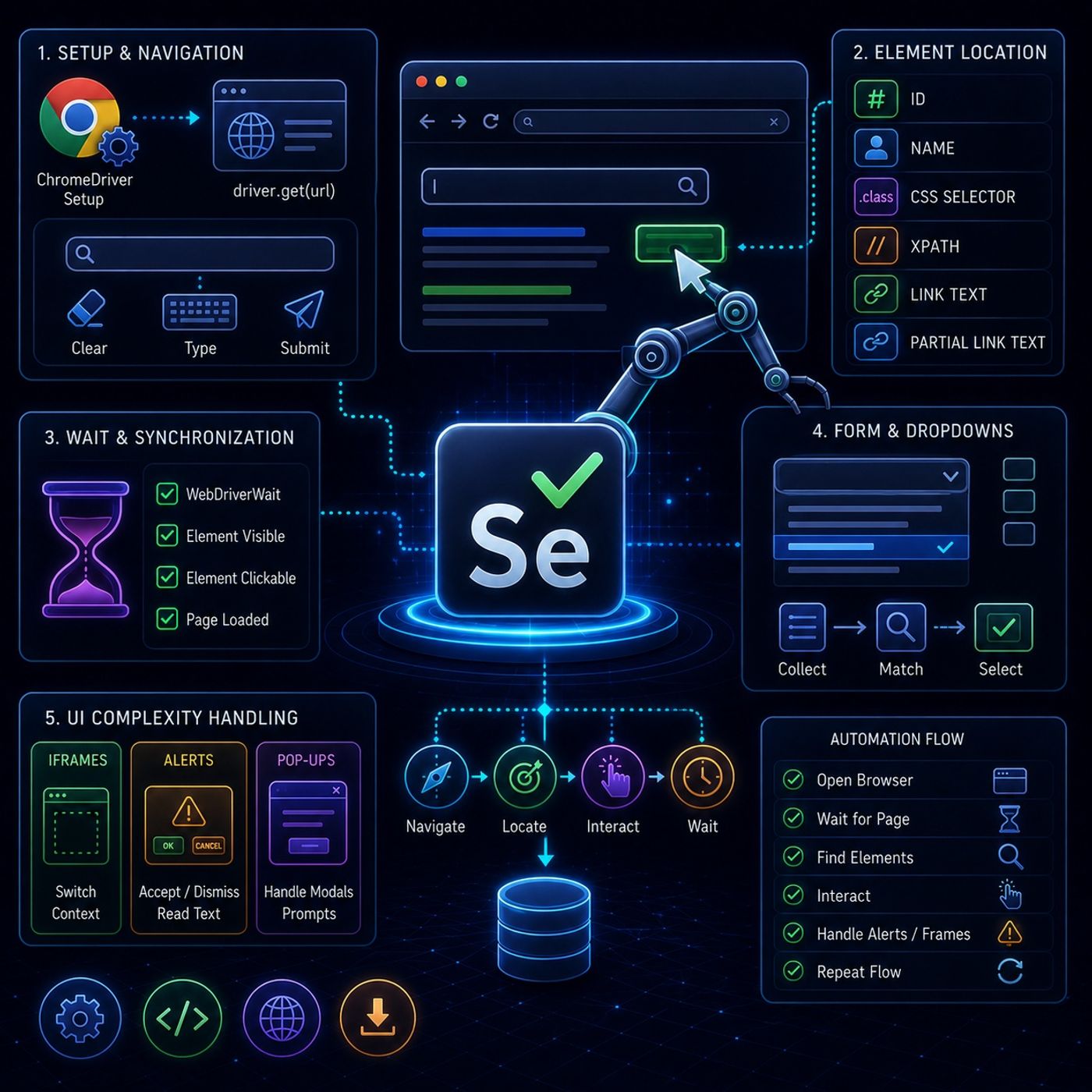
This tutorial series is basically showing how Selenium moves from “clicking elements” into real-world browser automation, where pages are messy, slow, and full of UI traps.🧭 1. Core Setup + Basic NavigationEverything starts with controlling the browser:
You can listen and download our episodes for free on more than 10 different platforms:
https://linktr.ee/cybercode_academy
- ChromeDriver setup
- Acts as the bridge between Python and Chrome
- driver.get(url)
- Opens a webpage inside the automated browser session
- locate input field
- clear existing text
- send new text using keyboard input
- submit or trigger search
- fastest and most stable
- common in forms (login, search, signup)
- uses class-based targeting
- flexible and widely used in real projects
- most powerful option
- works even when HTML is messy or missing IDs/classes
- exact link text
- partial link text
Useful for navigation between pages.
- wait until element appears
- wait until element becomes clickable
- pause execution until condition is met
- collect all elements
- loop through them
- match desired value
- click selection
- embedded pages inside pages
- Selenium cannot access them directly
- must switch context before interacting
- accept (OK)
- dismiss (Cancel)
- read alert text
- they load slowly
- they restructure DOM dynamically
- they interrupt workflows with modals and alerts
- Open browser
- Wait for page stability
- Find elements reliably (ID/CSS/XPath)
- Interact carefully (click/type/select)
- Handle interruptions (alerts, iframes, delays)
- Repeat across navigation flows
You can listen and download our episodes for free on more than 10 different platforms:
https://linktr.ee/cybercode_academy
Hosts & guests
No transcript yet
This episode has not been transcribed. Request it and it moves to the front of the queue.
More episodes


